Tools I built because I needed them.
I'm PowerUserZ, an independent developer. Each app here started as a problem in my own day: AI coding limits I kept running into, screenshots that wouldn't paste into WSL, and a reading list that kept growing.
Press 1 2 or 3 to jump to an app.Tap a key to jump to an app.

OpenTokenUsage
Every AI coding limit, next to your clock.
OpenTokenUsage lives in the notification area and shows how much of your AI coding subscriptions you've used: session and weekly limits, credits, when they reset and whether you're on pace. No digging through dashboards, no mental math.
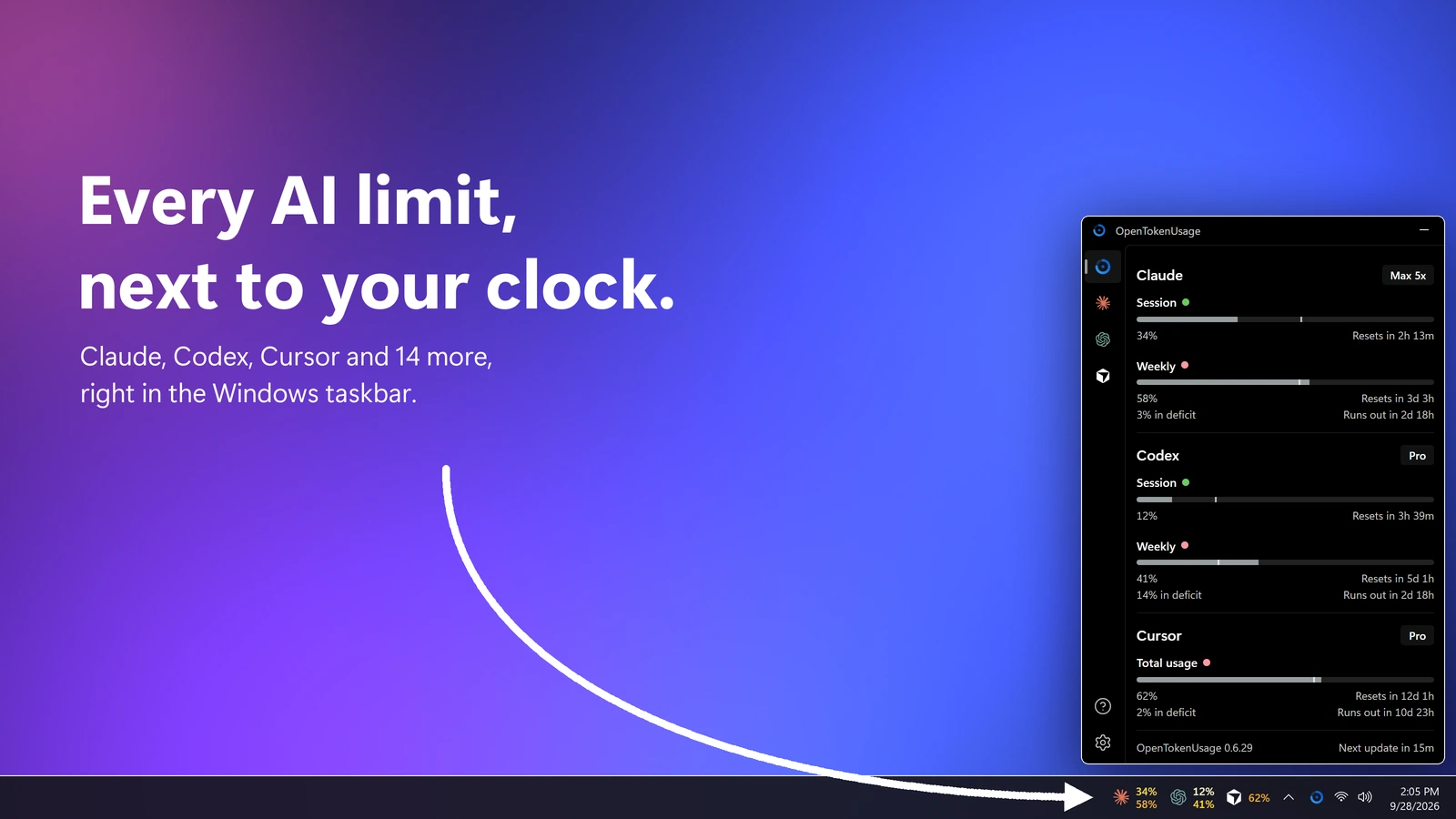
- One panel for every toolClaude, Codex, Cursor, Copilot and 13 more, opened from the tray or a global shortcut.
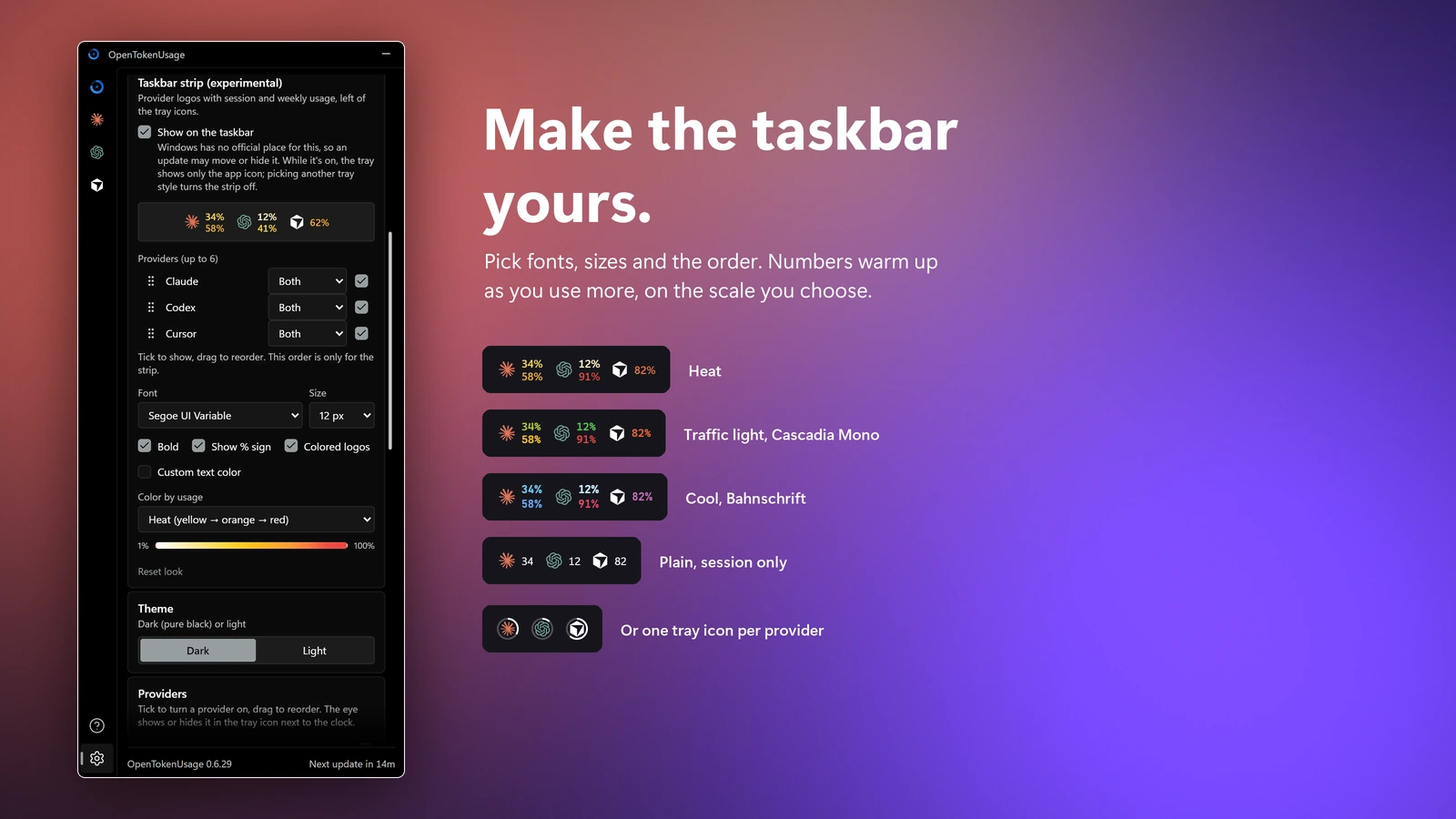
- Right next to the clockThe tray shows a percent, bars, or one logo ring per provider.
- PaceEvery limit says whether you're ahead or behind, and when it runs out at this rate.
- Alerts that matterNotifications at the levels you pick, and when a limit resets.
- One-click fixesErrors come with the fix: the login command or the right API key page.
- At home on Windows 11Mica, your accent color, pure black and light themes, 11 languages.
Install with WinGet
> winget install PowerUserZ.OpenTokenUsage
MIT licensed. The app checks for new releases and updates itself.
SpeedReader
Read one word at a time, and read faster.
SpeedReader shows each word in a fixed spot, so your eyes stay still instead of scanning across lines. The technique is called RSVP. With some practice, most readers reach 400 to 600 words per minute and still follow what they read. Try it here:
SpeedReader
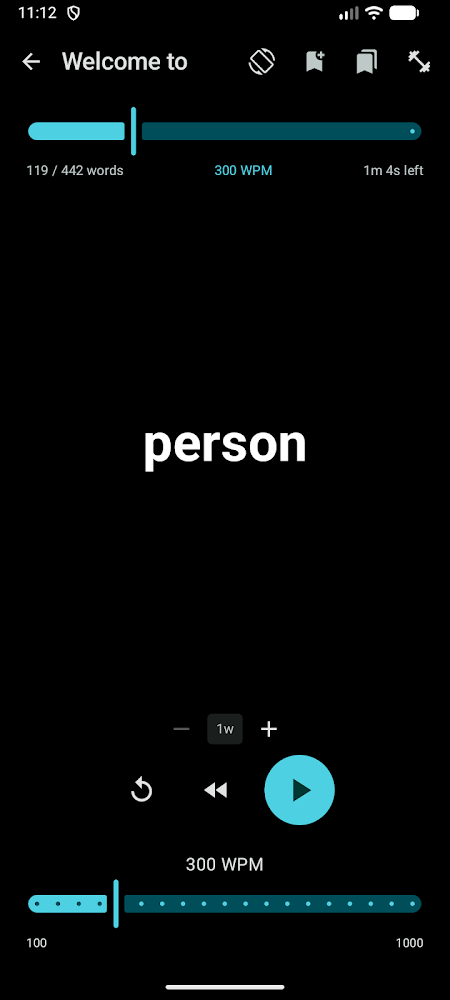
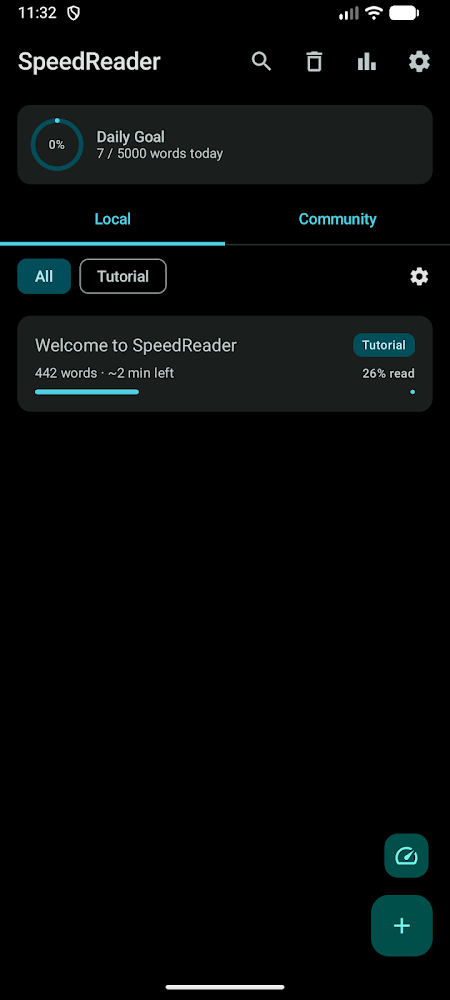
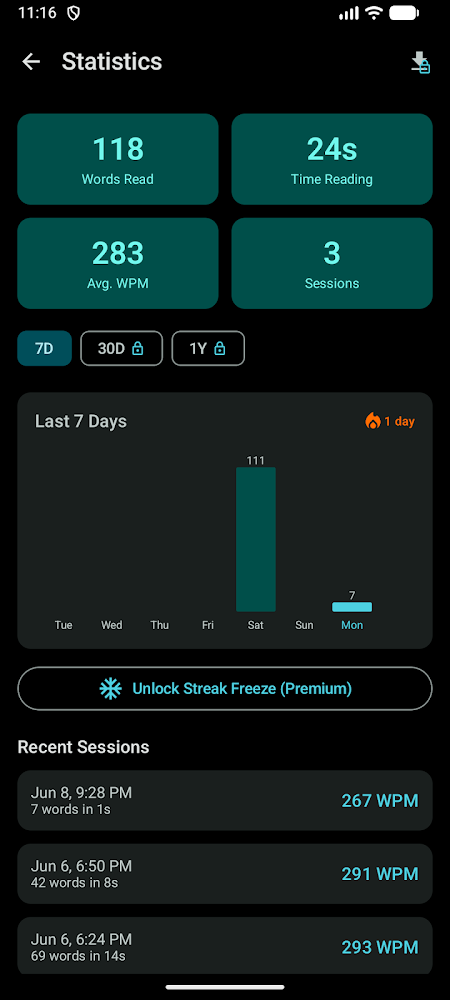
- Speed you controlChange words per minute while you read. Group 1 to 5 words per flash.
- Focus pointThe ORP highlight anchors your eye on each word, like the cyan letter above.
- Smart pausesCommas and periods slow down a little, so long sentences don't blur together.
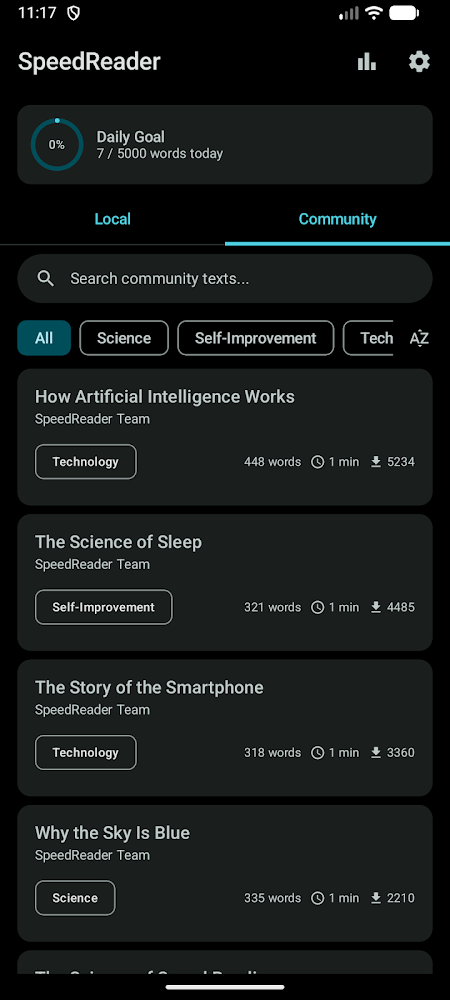
- Your own booksImport TXT, PDF and EPUB files, or practice on community texts.
- Training and statsA speed test, training mode, daily goals, streaks and reminders.
- Private by defaultYour reading stays on your device. No account, no tracking, no ads.
Published on Google Play as S+ Apps. Premium is optional and unlocks PDF and EPUB import, larger chunks, more fonts and longer statistics.
wsl-clipboard-png-bridge
Paste Windows screenshots into Claude Code on WSL.
Windows puts screenshots on the clipboard as BMP, and WSL passes them to Linux as BMP. Claude Code on Linux only accepts PNG, so pasting gives you "no image". This tiny background daemon converts the screenshot to PNG as soon as it lands, and pasting just works.
-
WinShiftSTake a screenshot
Windows copies it as image/bmp
-
image/bmpWSLg passes it through
Still BMP on the Linux clipboard, which Claude Code can't read.
-
image/pngThe bridge converts it
Within about 300 ms, and publishes PNG back to the clipboard.
-
AltVPaste in Claude Code
The screenshot attaches as [Image #1]
- One Bash scriptSmall enough to read before you install it. Tested with ShellCheck.
- Stays localRuns as your user, installs under your home folder and opens no network sockets.
- Safe conversionImageMagick runs with a timeout and memory limits on every screenshot.
Install on Ubuntu or Debian under WSL2
$ sudo apt install -y wl-clipboard xclip imagemagick coreutils util-linux
$ git clone https://github.com/PowerUserZ/wsl-clipboard-png-bridge.git
$ cd wsl-clipboard-png-bridge && bash install.shMIT licensed. On Warp for Windows, bind Alt V to image paste once; the README shows how. You can pin a release tag before installing.
If one of these saved you time
Everything here is built by one person. OpenTokenUsage and the WSL bridge are free and open source. A coffee helps me keep shipping updates, new providers and fixes.